Set up the tokenstat desktop app

The desktop app runs coding agents in project workspaces and reports usage across supported tools. Local workspaces and reports need no tokenstat account. Agents use their own provider connections and credentials.
For a tour with screenshots, see the desktop app.
Install it
Download the disk image, drag the app to Applications, and open it:
It needs macOS 14 or newer. It is a universal binary, signed and notarized, so the download supports Apple silicon and Intel Macs.
The app includes its engine. A separate CLI installation is optional. If you use both, they read the same local usage archive.
First run
Open the app and let it scan supported local records. How much history appears depends on what your tools retained. If nothing is found, follow no sessions found.
To start work, add an existing project folder under Workspaces, choose an installed agent, and review its launch settings. Start a session, then open its files and Git changes beside the terminal. See workspace setup.
Sign in from the account menu if you want usage sync or hosted remote access. Account linking and permission to access another machine are separate: approve each requesting device on that host. Updates and connected features can use the network without account sync. See what tokenstat accesses.
Where things are
| Screen | Answers |
|---|---|
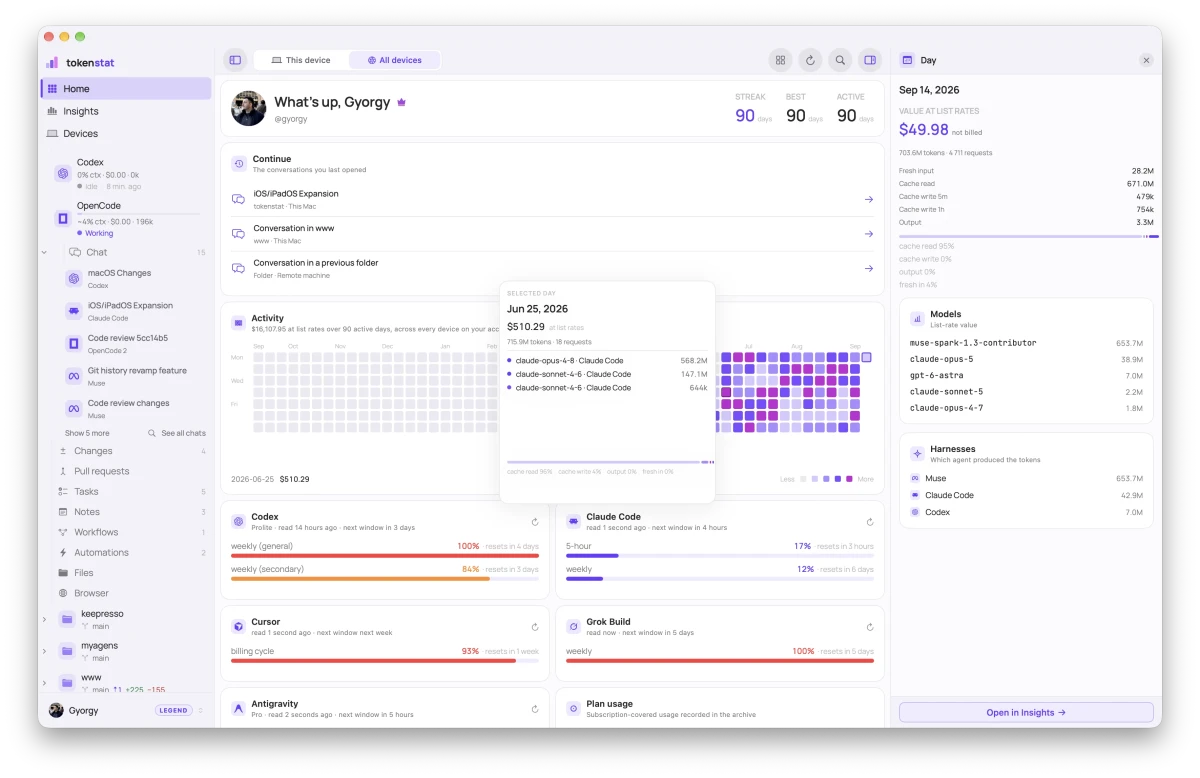
| Home | What is left before you start: the heatmap, today and this week, plan limits, anything running now |
| Insights | Usage and estimated API value by day, model, tool, and project |
| Workspaces | The work itself: file tree, git history, and agent sessions on their own tabs |
| History | Uncommitted changes, with a real diff per file and a commit box |
| Devices | Every machine on your account, and the workspaces on each |
| Browser | Web pages and development servers inside the app |
A workspace carries more than its sessions. Tasks is a board where a card is a job an agent can pick up, Workflows wires agents, commands and approvals into one graph, Automations runs a job on a schedule and keeps the result of every run, and Notes is the scratch pad that survives the session that wrote it. The desktop app has a picture of each.
Clicking a day on the Home heatmap opens what it was made of, model by model. The Insights inspector does the same for any row in any table.
Light and dark
Every screen ships in both themes and follows the system setting. Choose the appearance you prefer in settings.
Related
- The desktop app is the full tour: every surface, what it is for, and what is still being built.
- Run agent sessions in a workspace covers adding a folder and launching an agent.
- Plan limits on your dashboard covers optional sharing of plan-limit readings.
- Which tokenstat command shows what is the same ground, in the terminal.
More in Desktop app